App
Browse Mumbai Big on a phone and follow illustrated Cloudflare 1.1.1.1 setup steps for iOS or Android.
Choose how to open the site
A phone browser can show the reference panels, glossary and help pages directly. Add a bookmark if you return to a particular period often. Give the bookmark a name that includes its duration so that a thirty-second display is easy to distinguish from a ten-minute display later.
When the page opens but the timer is empty
Try another period page before changing a connection setting. A heading and illustration can load even when the browser has paused scripts. Bring the tab to the foreground, reload once and check the device clock. The illustrated connection setup below is available if you separately choose to use the Cloudflare app.
Choose a route
A browser visit and an app installation are separate choices. If you need a download, use the checklist on the Download page before opening any package.
Use your browser first
Keeping the page in a browser is an option if you only need to read the FAQs or view a reference countdown. For connection problems, switch once between Wi-Fi and mobile data to see whether the issue follows the network.
Save a period
Bookmark the period page itself to reopen the same duration. When you return, the current time determines which period appears.
Connection setup
Choose your device to see the Cloudflare 1.1.1.1 setup steps.
iOS
-
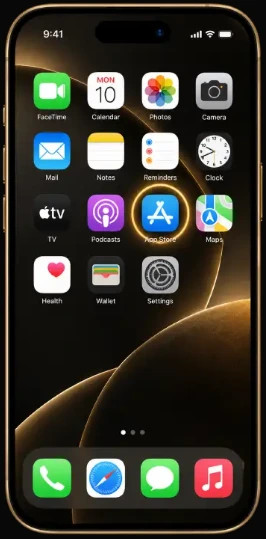
Open the App Store.
-
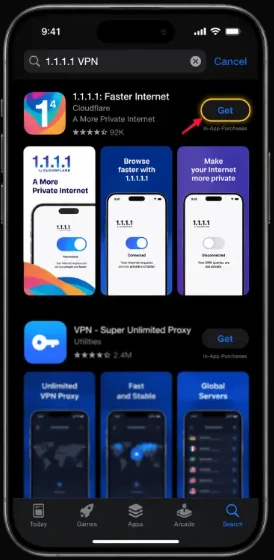
Find 1.1.1.1: Faster Internet by Cloudflare and install it.
-
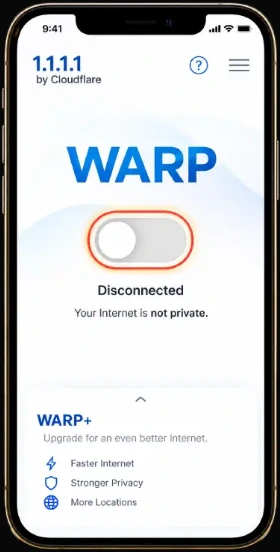
Open the app, follow the setup prompts and approve the VPN profile if asked.
-
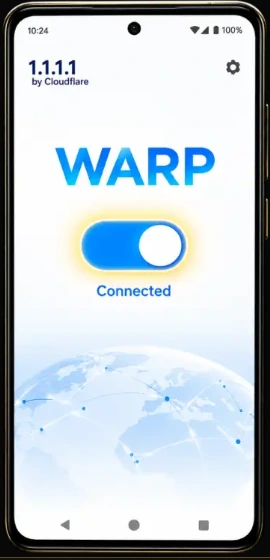
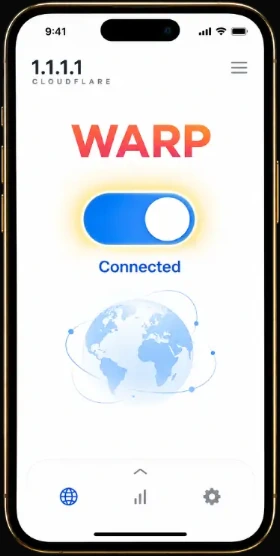
Switch on WARP. When the app shows Connected, return to the website.
Android
-
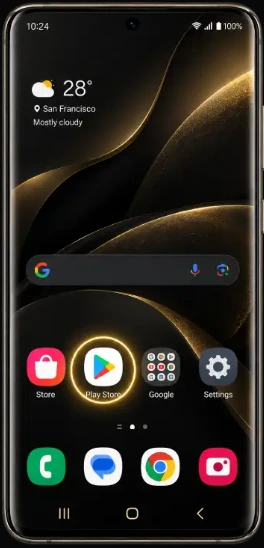
Open Google Play.
-
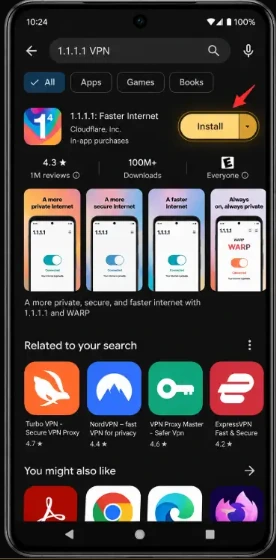
Find 1.1.1.1: Faster Internet by Cloudflare and install it.
-
Open the app, follow the setup prompts and approve the VPN profile if asked.
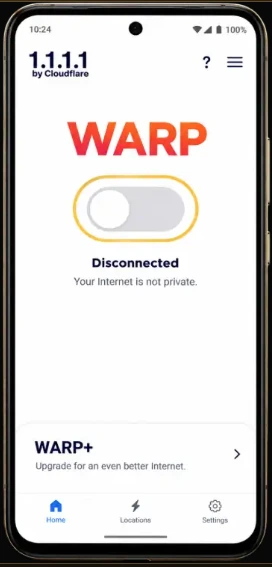
-
Switch on WARP. When the app shows Connected, return to the website.